

What is MAC Spoofing? How It Works & How to Use It


What Is MAC Spoofing And How to Use It?
Check out our in-depth MAC Spoofing explainer video here:
Public Wi-Fi is everywhere. So is device tracking.
Every time you connect to a network, your device shares a unique identifier called a MAC address. Networks use it to recognize your device and send traffic to your tablet, instead of, let’s say, your roommate’s iPhone.
But that same ID can also be used to remember your device across sessions and repeat visits. That’s not great if you’d rather not be quietly tracked every time you grab a latte at your favorite coffee shop or open your laptop at Gate 42.
The fix is MAC spoofing (aka: faking). MAC spoofing means changing or randomizing your device’s MAC address so the network sees a fresh ID instead of your real one, so it thinks the connection is coming from a brand new device.
In this guide, you’ll learn what is MAC spoofing, why it matters for MAC address privacy, when it helps (and when it doesn’t), and how to change your MAC address on common devices. We’ll also cover Windscribe’s built-in MAC address spoofing feature, so you can do it in a few clicks.
What Is a MAC Address?
Believe it or not, MAC does not stand for McDonald’s. It stands for Media Access Control. A MAC address is basically your device’s “name tag” for Wi-Fi and Ethernet. It’s tied to the network hardware in your laptop or phone (like the Wi-Fi adapter), and it helps the router tell, “This data goes to that device,” instead of sending it to someone else on the same network.
Typically, MAC addresses look like this: 00:1A:2B:3C:4D:5E. That’s a 48-bit value written as six pairs of hexadecimal characters. In many cases, the first three pairs point to the manufacturer (often called the OUI, Organizational Unique Identifier), and the last three pairs are specific to that network interface.
It’s easy to mix up a MAC address and an IP address, but they do very different jobs. Your MAC address is your device’s name tag on the local network. It helps the router hand the right data to the right device.
Your IP address is the address the internet uses to send stuff to and from your connection. IP addresses can change whenever you hop networks, but MAC addresses stay the same.
And that’s where privacy comes in. If your device keeps flashing the same “name tag” every time you hop on Starbucks Wi-Fi, it’s pretty easy for the network to go, “Oh, hey, you again,” whether it’s tomorrow or at another Starbucks with the same Wi-Fi setup. Many devices try to prevent this with MAC randomization, but it’s not always consistent, which is where intentional MAC spoofing helps.
What Is MAC Spoofing?
So, what is MAC spoofing, really? Also called MAC address spoofing, MAC masking, or MAC cloning.
MAC spoofing is when your device temporarily changes the MAC address it reports to a network. Sort of like faking your device’s ID. Instead of showing the Wi-Fi network your real MAC address, your device presents a different one, usually a random address, so the network thinks it’s coming from a new device.
This is a software-level trick. Your original, factory-set MAC address does not get erased or rewritten. It stays the same inside your hardware, but your operating system can override what gets broadcast to the network.
You’ll sometimes see MAC addresses described in two types. A UAA (Universally Administered Address) is the “real” one assigned at the factory. A LAA (Locally Administered Address) is a user-defined one, and that’s what the network sees when you spoof.
The simplest way to think about it is this: your real MAC is still there. Spoofing just gives you a nickname for the network.
Why Spoof Your MAC Address?
Think of your MAC address like a loyalty card for your device on local networks. MAC spoofing swaps it for a throwaway number, so the network can’t easily recognize you when you come back. Here’s what it protects.
Protect Your Privacy on Public Wi-Fi
Public networks like cafés, airports, and hotels can log the devices that connect to them, and the easiest way to keep score is your MAC address. Even if you never type your name into a captive portal, the network can still go, “Oh, it’s that laptop again,” the next time you show up. MAC spoofing fixes that by making your device look brand new each time you join.
This matters because some Wi-Fi operators and retail setups have historically used Wi-Fi signals to estimate foot traffic and repeat visits by watching the same devices pop up over time. Modern operating systems try to blunt that with MAC randomization, but spoofing lets you take the wheel and apply it intentionally.
Bypass Network Restrictions
Network restrictions are annoying, and MAC spoofing can sometimes help you sidestep the laziest ones. For example, some “free for 30 minutes” Wi-Fi hotspots track your session by MAC address. Swap your MAC, and you can look like a brand-new device, which may reset the timer.
Some networks also use MAC filtering, meaning they only allow pre-approved devices to connect. In those cases, spoofing lets your device present a different MAC address. You’ll also run into MAC-based limits with certain ISPs or older gear that only register a set number of devices behind a modem or hotspot. Spoofing can help you swap which device gets counted, without changing the hardware.
Avoid Device Fingerprinting
Device fingerprinting is another way networks and services can recognize you. Instead of relying on cookies, they mash together little clues about your device and connection to build a “pretty sure it’s this same person again” profile, and your MAC address can be one of those clues on local networks.
MAC spoofing helps by rotating that device ID. If your MAC keeps changing, it’s a lot harder for a network to go, “Yup, same device as last time,” which makes long-term tracking way less reliable.
Network Troubleshooting & Testing
MAC spoofing is also genuinely useful for admins and IT people, not just privacy nerds. If you’re testing network rules, access controls, or DHCP behavior, changing a MAC lets you simulate a “new” device without dragging more hardware into the room. It can also help untangle issues like IP address conflicts by forcing the network to treat your device as a different client.
Security teams and penetration testers use MAC spoofing, too, but only with clear permission. The whole point is to test how a real network reacts, not to sneak around where you don’t belong.
Replace a Registered Device
Sometimes a MAC address is treated like a device “identity” on purpose. Certain software licenses, network access systems, or ISP setups can be tied to a specific MAC address. So if you replace a network card, router, or modem and something suddenly stops working, spoofing can let the new hardware wear the old “name tag” so you keep access without a support-ticket scavenger hunt.
MAC Spoofing vs. VPN: Understanding the Difference
|
Quick answer: MAC spoofing hides your device ID on the local network, while a VPN hides your IP and encrypts your traffic on the wider internet. For the best privacy, use both. |
So, how does MAC spoofing differ from a VPN? Easy: MAC spoofing changes your device’s “name tag” on the local network, while a VPN changes your “return address” on the internet.
A VPN does three main jobs: it hides your IP address from websites and remote servers, it encrypts your internet traffic, and it helps protect you from ISP monitoring and geo-restrictions.
What it does not do is change your MAC address, because your MAC address never even makes it into the VPN tunnel. It’s only used on your local network to get traffic from your device to the router, and then it gets dropped at the router.
So in practice, you want both: a VPN to reduce remote tracking (websites, ISPs, advertisers), and MAC spoofing to reduce local tracking (public Wi-Fi operators, shared networks). With Windscribe, you get both in one app, since we’re one of the few VPNs with built-in MAC spoofing. Cool, huh?
How to Use MAC Spoofing in Windscribe
Ready to give your device a fake mustache? Here’s how to turn on MAC spoofing in Windscribe and swap your MAC address in a few clicks.
Step 1: Navigate to Connection Settings
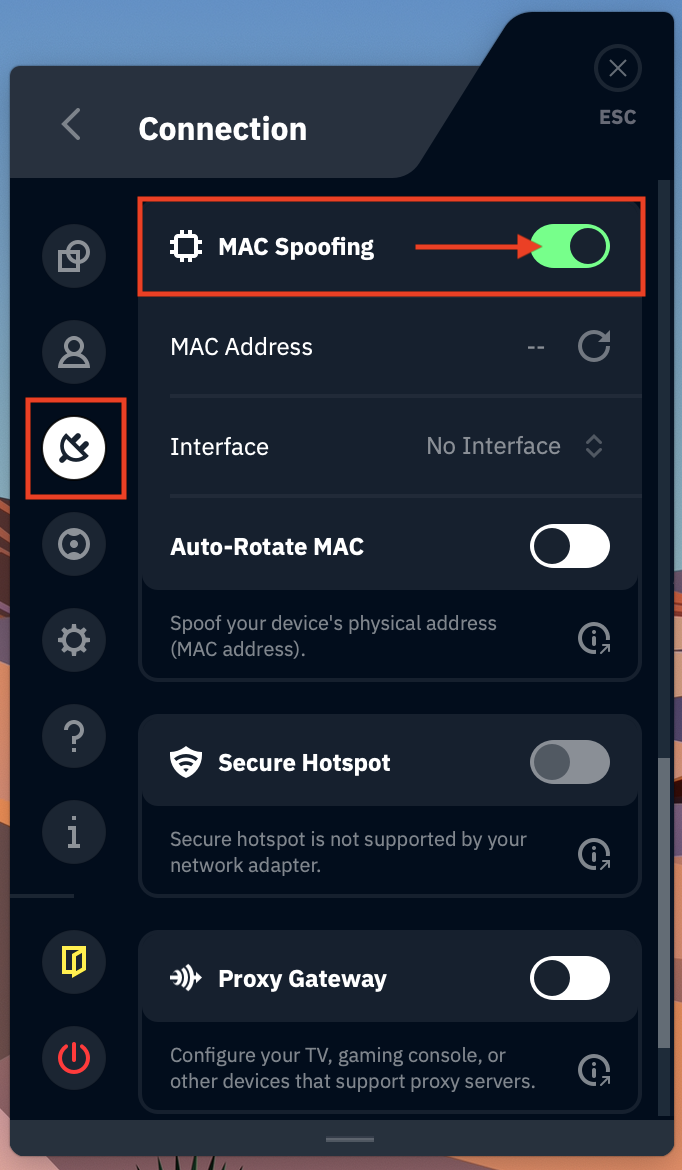
On Windscribe’s desktop apps, you’ll find MAC Spoofing in Preferences → Connection (the plug icon), as shown in the screenshot below.
Step 2: Enable MAC Spoofing
In the MAC Spoofing section, toggle MAC Spoofing to ON (it’ll turn green). Once enabled, Windscribe will spoof your MAC address right away.
Step 3: Select Your Network Interface
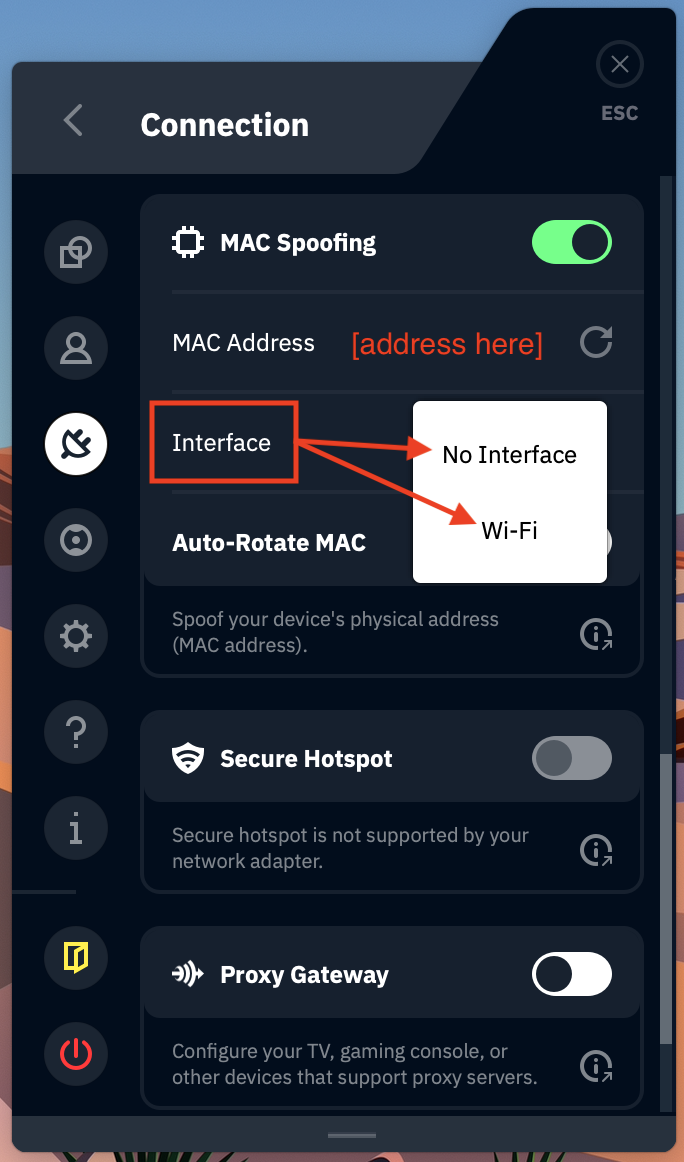
Use the Interface dropdown to choose which network interface you want to spoof. This is usually your Wi-Fi adapter (most common) or Ethernet if you’re wired. Pick the one you’re currently using.
Step 4: Manually Refresh (Optional)
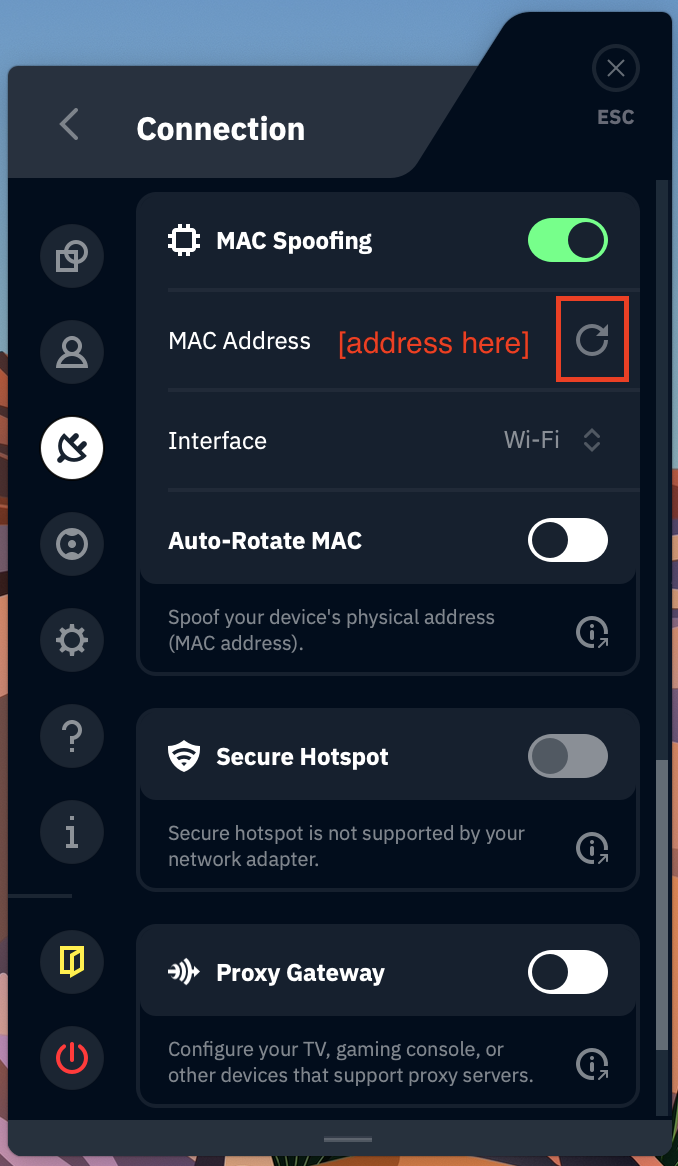
Want a new MAC on demand? Click the refresh/recycle icon. Windscribe will generate a fresh spoofed MAC address. Your connection may briefly disconnect and reconnect while it applies the change.
Step 6: Enable Auto-Rotate MAC (Recommended)
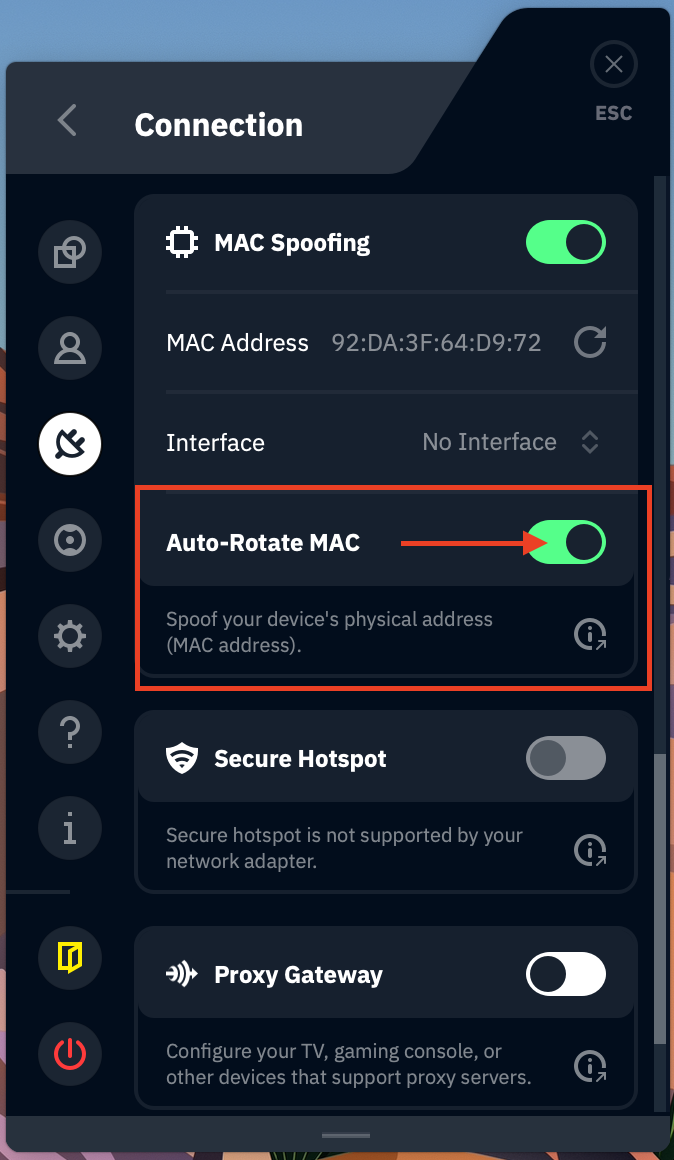
For the “set it and forget it” option, enable the Auto-Rotate MAC option. This automatically changes your spoofed MAC address periodically, which helps prevent your device from looking like the same repeat visitor on untrusted networks.
Other Ways to Change Your MAC Address
Not a Windscribe user? There are other manual methods you can use to change your MAC address on different devices manually. Way more technical than Windscribe. Our built-in feature makes MAC spoofing as simple as flipping a switch. But hey, it’s your choice.
Windows
Open Device Manager → Network adapters → right-click your Wi-Fi/Ethernet adapter → Properties → Advanced. Look for Network Address or Locally Administered Address, then enter a new MAC address as 12 characters (no colons or dashes). Disable and re-enable the adapter (or reboot) for it to apply.
If you want the easy route, Technitium MAC Address Changer is a popular free tool.
macOS
Open Terminal, then run: sudo ifconfig en0 ether XX:XX:XX:XX:XX:XX. Replace en0 with your network interface and the XX:XX... with the MAC you want. This change typically resets after a reboot.
Linux
You can use ip/ifconfig, but the simplest method is usually macchanger. For example: sudo macchanger -r eth0 randomizes your MAC address for that interface (swap eth0 for your actual interface).
Mobile Devices
On iOS (14+) and Android (10+), MAC randomization is built in and usually enabled by default per network. Manual MAC spoofing typically requires jailbreaking/rooting, which isn’t worth it for most people.
Is MAC Spoofing Legal?
Faking your MAC address sounds like something you’d do in a hoodie while typing furiously in a dark room… but no, you’re probably not going to jail for it. In most places, MAC spoofing is generally legal when you’re using it for privacy. It’s not some underground hack, either. It’s a standard feature in modern operating systems, and MAC randomization is built into iOS, Android, and Windows.
Where MAC address spoofing becomes a problem is when you do something illegal with it. For example, impersonating someone else’s device by copying their MAC address, using spoofing to bypass paid services (like dodging hotel Wi-Fi charges, however tempting), or accessing networks you don’t have permission to use. It can also put you in violation of a network’s terms of service.
So the rule is pretty simple: use MAC spoofing to protect your own privacy, not to sneak into places you’re not authorized to access. In other words, be smart, not shady.
Limitations of MAC Spoofing
MAC spoofing is great for MAC address privacy, but it’s not an invisibility cloak. Think of it as swapping your device’s “name tag,” not disappearing off the planet. It does its part in a layered privacy setup, but if you want stronger overall privacy, combine it with a VPN, tracker blocking, and basic good security habits.
Local Network Only
MAC addresses are local-network only. They don’t travel past your router, which means websites and remote servers never see them. So spoofing helps with privacy on the Wi-Fi network you’re connected to, but it won’t stop websites, apps, or your ISP from seeing your internet activity. For wider internet privacy, you’ll want a VPN.
Temporary Changes
With manual methods, MAC spoofing often resets after a reboot (depending on how you do it). That means the change is usually temporary, and you may need to re-spoof when you reconnect or restart. With Windscribe, once you enable MAC spoofing, it stays active while the app is running.
Detection Possible
Some networks are smarter than others. A basic coffee shop hotspot probably won’t care, but enterprise and managed networks can sometimes flag suspicious patterns, unusual MAC formats, or a device that keeps “becoming” a brand-new client. Spoofing reduces tracking, but it’s not guaranteed to be invisible everywhere.
Frequently Asked Questions
Does a VPN hide my MAC address?


Can websites see my MAC address?
Will changing my MAC address disconnect me from Wi-Fi?
What’s the difference between MAC spoofing and MAC randomization?
Does Windscribe’s MAC spoofing work on phones?
New MAC, Who Dis?
Your privacy is stronger when your device stops introducing itself to every random Wi-Fi network it meets.
MAC spoofing is basically giving your device a fresh name tag every time it walks into a new Wi-Fi room.
It doesn’t change who you are, and it doesn’t magically make you invisible on the internet, but it does stop sketchy or overly curious networks from easily recognizing your device across repeat visits. That makes it especially useful on public or untrusted Wi-Fi, where you have no idea what’s being logged behind the scenes.
For best results, pair it with a VPN. MAC spoofing helps with local tracking on the network you’re connected to, while a VPN protects you on the wider internet by encrypting your traffic and swapping your IP address. Different layers, same goal: less tracking, more privacy.
And if you want the easy version, Windscribe has built-in MAC spoofing with Auto-Rotate, so you can flip it on and let your device “forget” its old name tag automatically while you’re connected.