

Fast & Easy-to-Use Free VPN Extension for Microsoft Edge
The Windscribe VPN MS Edge Extension helps you mask your physical location, circumvent censorship, and block ads and trackers.
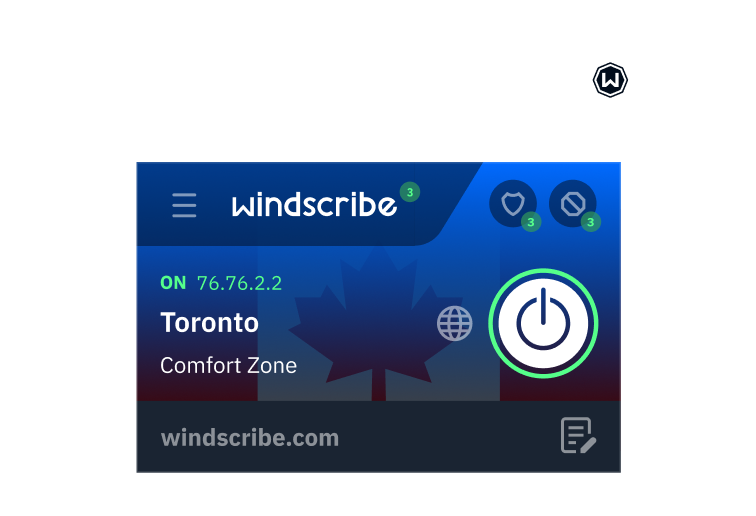
How to set up the Windscribe VPN Add-on on MS Edge
2
Sign up
Tap “Sign up” or “Login” if you already have account.
3
Connect
Tap on the BIG Power button for instant privacy.
Features
Windscribe’s VPN for MS Edge Offers Secure and Private Web Browsing

Advanced Privacy
Take back control of your privacy.
Governments block content based on your location and corporations track and sell your personal data.
Windscribe is not just a proxy extension. It's a suite of privacy tools that help you avoid all of that.
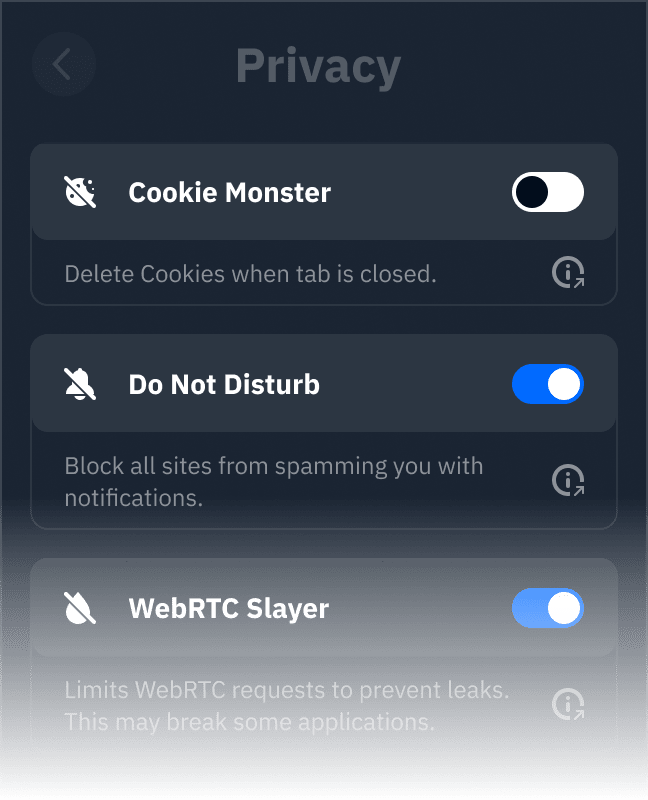
Cookie Monster
This feature deletes 1st or 3rd party cookies when you close the tab.
Do Not Disturb
Tired for sites asking you to send notifications? Make them go away with this feature.
WebRTC Slayer
Prevents WebRTC leaks that plague most proxy extensions and VPNs.
Location Warp
Sites can request your GPS location which bypasses most proxies and VPNs. Not with Windscribe.
Time Warp
Sites can detect that your IP doesn't match your browser's time zone. This feature solves this problem.
Language Warp
Sets your language and locale settings to match the connected proxy.
Split Personality
Randomly rotates your user agent to combat browser fingerprinting.
Workers Block
Blocks web workers from running in the background.

Advanced Blocking
Stop stalking and speed up browsing
Most VPNs will do virtually nothing for your privacy. The Windscribe Extension blocks ads and trackers that follow you online. This will result in pages loading faster.
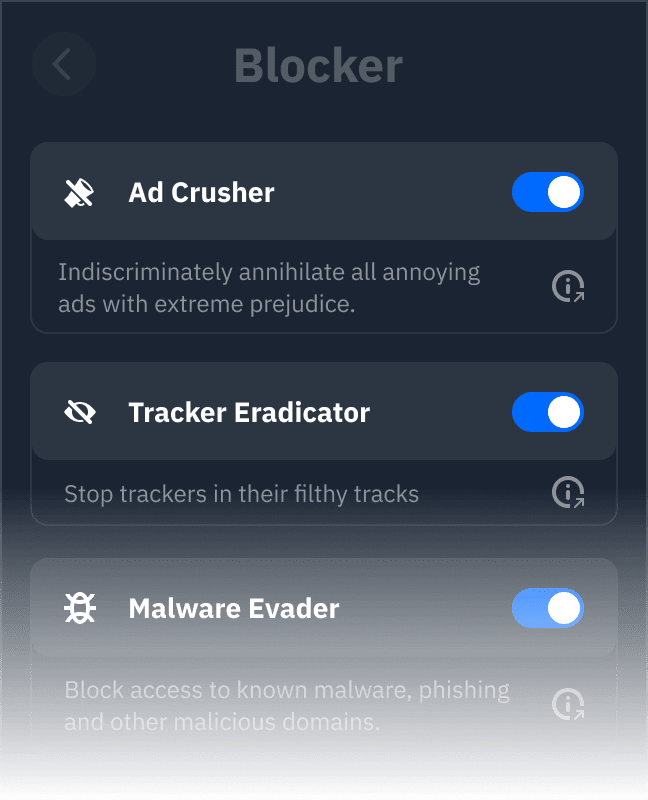
Ad Crusher
Indiscriminately annihilate all annoying ads with extreme prejudice.
Tracker Eradicator
Stop trackers that sell your data in their filthy tracks.
Malware Evader
Block access to known malware, phishing and other malicious domains.
Social Distancing
Social networks are the biggest privacy invaders out there. Block their trackers.
Cookie Go Away
Blocks annoying “We use cookies” banners on all websites.
Advanced Mode
Manage all blocklists through the native uBlock interface.

Unparalleled Connectivity
Stay protected no matter what happens.
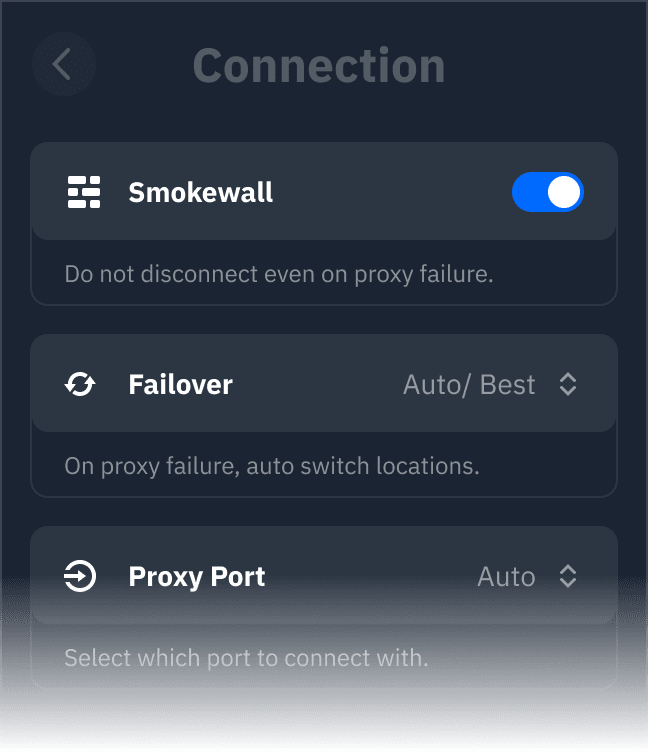
Windscribe offers 6 different protocols to choose from, along with over 20 different connection ports.
Other Features

Unlock Content

Strict No-Logging Policy

Custom whitelisting

Servers in over 69 Countries & 135 Cities
Loved & Trusted by Over 100 Million Users
Frequently Asked Questions
Do I need a VPN Extension for Edge browser?


Everytime you use Edge browser (or any browser for that matter), your IP address and browsing history can be monitored. Use the Windscribe VPN Edge extension to add an extra layer of security to your digital life.
How do I disable a VPN on Edge?
Should you wish to disconnect your VPN connection on the Windscribe Edge extension, simply click the power button on the app (It should deactivate and appear in the ‘off’ position). Double check your connection, it’s possible your IP address and browsing history are exposed if you do not also have the Windscribe app active.
How do I set up a VPN extension for Edge?
It’s as simple as downloading the extension on the Edge store, logging in, and clicking the connect button. The Windscribe extension will automatically connect you to the closest and fastest server by default, however you also have the choice of 69+ VPN server locations.
Does Edge browser have a built-in VPN?
Yes, Edge has Microsoft Edge Secure Network hard coded in. While you do have the control to toggle it on/off, it offers no server location options and a minimal amount of data. In contrast, the Windscribe VPN Edge extension offers 69+ VPN server locations