

How to Set Up & Use Windscribe on a Mac


Setting up Windscribe on Mac is mostly painless: download the installer, open the package, approve the macOS prompts, and connect.
Once installed, Windscribe can encrypt your Mac’s internet traffic, mask your IP address, and help stop apps from connecting outside the VPN tunnel. macOS will ask for a few permissions along the way, because Apple likes to make sure every button has a chaperone.
This guide covers how to install Windscribe on macOS, connect for the first time, and configure the Mac-specific settings worth knowing.
Before You Install
Here’s what you’ll need before setting up Windscribe on your Mac:
- A Mac running macOS 13 Ventura or newer: The current Windscribe desktop app supports macOS 13 and above. Older macOS versions aren’t supported.
- A Windscribe account: You can use an existing account or create a free one before setup. Free accounts start with 2 GB of data per month, or up to 10 GB per month after confirming an email address.
- A plan, if you need more: The free plan is enough to test Windscribe. Pro is $9/month or $69/year, which works out to $5.75/month, and includes unlimited data, all VPN locations, and full R.O.B.E.R.T. access. Build-A-Plan lets you add specific locations for $1 per location per month, with a $3 monthly minimum. Unlimited data and full R.O.B.E.R.T. access are available as a $1/month add-on.
If you add an email address to your account, open the confirmation email from Windscribe and follow the link to confirm it.
Download Windscribe for Mac
The recommended way to install Windscribe on Mac is to download the installer directly from the official Windscribe website. You can also find Windscribe in the Mac App Store, but the direct website installer gives you the standard desktop app setup flow and updates directly from us.
The Windscribe desktop app is open-source, so anyone can inspect the client code on GitHub. You know, in case “trust us, bro” is not your preferred security model.
Method 1: Install From the Official Website
- Open your browser and go to the official Windscribe download page.
- Click the Mac download option.
- Open the downloaded .pkg installer from your Downloads folder.
- Follow the on-screen steps.
- Click Install when prompted.
- Enter your Mac password if macOS asks for permission.
- Open Windscribe from your Applications folder or Spotlight.
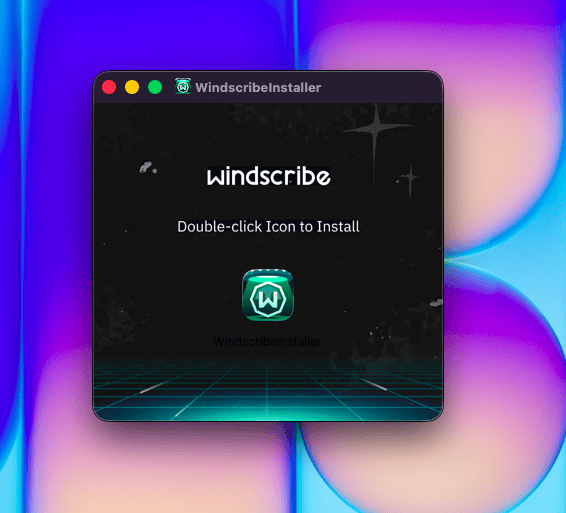
Figure 1: Double-click the WindscribeInstaller icon to install Windscribe.
Method 2: Install From the Mac App Store
You can also install Windscribe from the Mac App Store. This works fine for most users, but for this guide, we recommend the direct website installer because it matches the full desktop setup flow and gives you updates directly from Windscribe.
Connect for the First Time
Open Windscribe from your Applications folder, Launchpad, or Spotlight.
Log in with your Windscribe username and password. Once you’re in, click the large power button to connect. Windscribe will choose the best available location automatically.
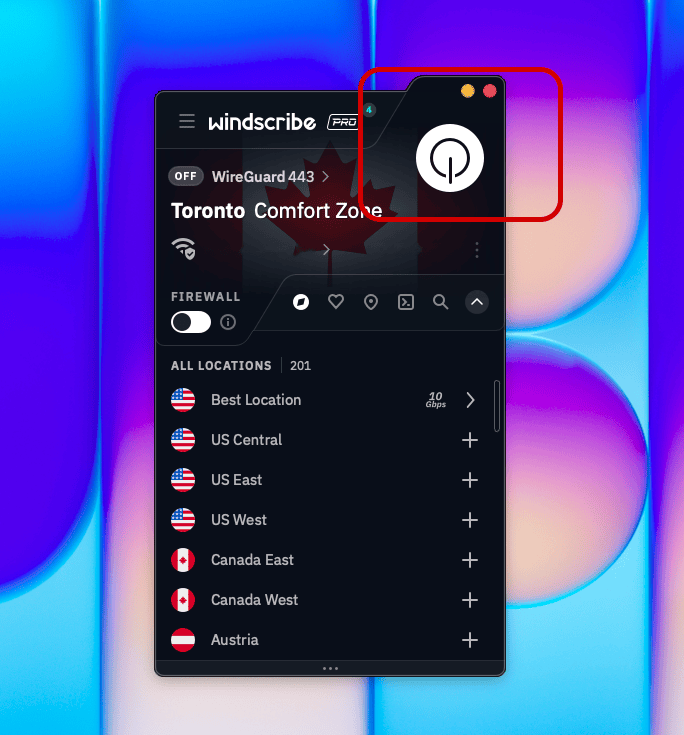
Figure 2: The highlighted power button in Windscribe.
The first time you connect, macOS will ask you to “Allow VPN Configurations”. Click Allow, then enter your Mac password or use Touch ID if prompted. This gives Windscribe permission to create the VPN connection on your Mac.
To choose a location yourself, open the location list and select a country or city. This is useful if you need a specific region, want to compare speeds, or have strong feelings about routing your traffic through Zurich today.
To disconnect, click the power button again.
Note about locations: Free accounts can connect only to free locations. Paid locations are marked with a star and require either a Pro or a Build-A-Plan subscription that includes that location.
Recommended Windscribe Settings for Mac
Your Mac will work with the default setup, but these settings are worth checking once Windscribe is installed.
Firewall
Windscribe’s Firewall blocks traffic from leaving your Mac outside the VPN tunnel. If the VPN connection drops, the Firewall prevents your apps from falling back to your regular internet connection and exposing your real IP address. Instead, the connection fails closed.
That matters on a Mac because plenty of apps connect quietly in the background: browsers, iCloud, messaging apps, mail clients, creative tools, cloud backups, software updates, and that one menu bar app you installed three years ago and forgot about.
For most Mac users, keeping the Firewall on is the right move.
Network Options
Network Options help Windscribe decide what to do when your Mac joins a new network.
You can mark networks as trusted or untrusted, then tell Windscribe how to behave on each one. For example, your home Wi-Fi can be trusted, while hotel Wi-Fi, airport Wi-Fi, coffee shop Wi-Fi, and “Free_Public_WiFi_2” can be treated with the suspicion they deserve.
This is especially useful on MacBooks. If your laptop travels, Network Options can help Windscribe connect automatically when you join networks you don’t trust. The goal is simple: less manual remembering, fewer privacy oopsies.
Useful Mac Extras
These features are not required for basic VPN use, but they can make Windscribe more useful on macOS.
Split Tunneling
Split Tunneling lets you choose which apps or hostnames bypass the VPN while the rest of your Mac stays routed through Windscribe.
This is useful when one service gets cranky about VPNs. For example, you might keep your browser, torrent client, or media app on the VPN, while letting a banking app, work tool, local printer, or delivery service use your normal connection.
On macOS, Split Tunneling may require enabling the Windscribe Split Tunnel Extension in System Settings if apps do not route correctly. Apple keeps a tight grip on network permissions because, apparently, your computer is a gated community.
After setting it up, test your rules to make sure the right apps are using the right connection.
MAC Address Spoofing
MAC Address Spoofing helps reduce tracking on local networks.
A MAC address is a hardware identifier used on local networks. Public Wi-Fi operators can sometimes use it to recognize when the same device returns to a network. MAC Address Spoofing randomizes that identifier, making it harder for networks to build a neat little attendance sheet for your Mac.
This is most useful on public or shared Wi-Fi networks, like cafés, hotels, airports, campuses, and coworking spaces. It doesn’t make you invisible everywhere online. It just helps with one specific type of local network tracking. Still useful. Still less creepy.
R.O.B.E.R.T.
R.O.B.E.R.T. is Windscribe’s customizable DNS-level blocker.
While you’re connected to Windscribe, R.O.B.E.R.T. can block many ads, trackers, malware, phishing, and other unwanted domains before they load on your Mac. That can reduce junk, cut down on tracking, and stop some sketchy domains before your browser has to deal with them.
You can manage R.O.B.E.R.T. from the desktop app or on the Blocking Categories and Custom Rules pages under Security in My Account.
R.O.B.E.R.T. is not antivirus software, and it will not save you from opening a file called final_invoice_v7_really_final.zip, but it is a useful filter for the junk your Mac tries to reach.
Best Setup for a MacBook
For a MacBook, the best low-maintenance setup is:
Firewall on. Network Options configured. Protocol left on default unless something breaks.
That gives you a good balance of protection and convenience. Windscribe can react when your Mac joins an untrusted network, and the Firewall helps prevent traffic from slipping outside the VPN tunnel if the connection drops.
This is especially helpful if you use public Wi-Fi often. The best security setting is the one you don’t have to remember while balancing coffee, a charger, and 37 browser tabs.
To check your browser's connection, compare your public IP before and after connecting using our What Is My IP tool. This does not test the traffic of every app on your device.

